
How Upstreams Work
An upstream is the destination server that receives requests forwarded from your custom domains. In most cases, this is your application’s existing server.
For example, if your application is already available at:
app.example.comyou can configure it as an upstream in Hostgrid and connect one or more custom domains that forward traffic to it.
Relationship between upstreams and domains
Section titled “Relationship between upstreams and domains”An upstream can serve multiple custom domains, but each custom domain can only be associated with one upstream at a time.
For example:
Upstream app.example.com │ ┌───────────┼───────────┐ │ │ │ ▼ ▼ ▼customer-a.com customer-b.com portal.customer-c.comAll requests made to these custom domains are securely forwarded to the same upstream.
This one-to-many relationship allows you to serve multiple customer domains, brands, or websites from a single application while managing each domain independently.
Creating an upstream
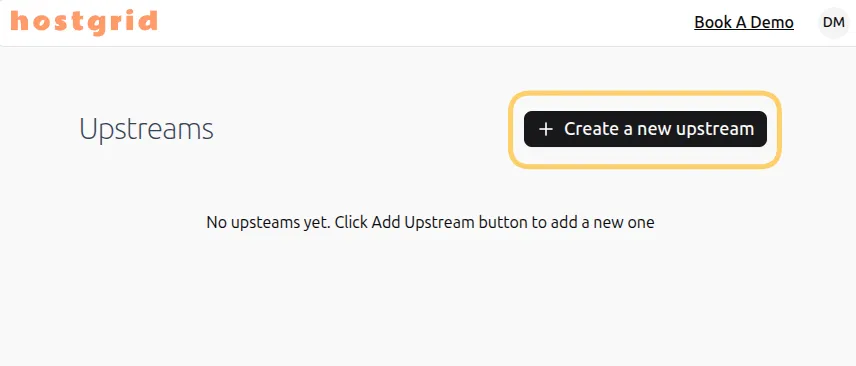
Section titled “Creating an upstream”From the dashboard, click Create New Upstream.
The pop-up will appear:
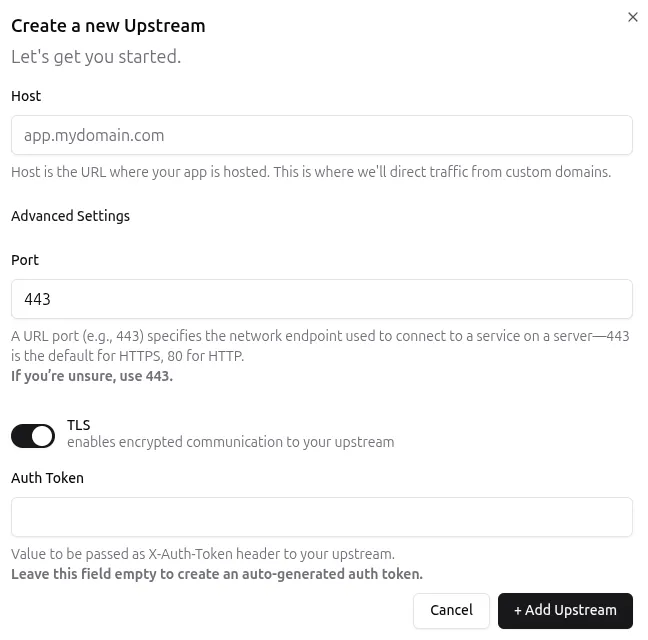
The Host field is the most important setting. Enter the hostname where your application is currently hosted.
For example:
app.example.comcustomer.your-saas.cominternal.example.netOnce the upstream has been created, Hostgrid will forward requests from any associated custom domains to this host.
Upstream settings
Section titled “Upstream settings”The hostname of your application.
This is the destination where Hostgrid forwards incoming requests after processing the custom domain.
The port on which your application accepts incoming traffic.
The default value is 443, which is suitable for most HTTPS applications. You only need to change this if your application listens on a different port.
Controls whether Hostgrid connects to your upstream using HTTPS.
TLS is enabled by default and should remain enabled whenever your upstream supports encrypted connections.
Auth Token
Section titled “Auth Token”The authentication token is sent to your upstream as the X-Auth-Token request header.
If you leave this field empty, Hostgrid automatically generates a secure token.
Your application can validate this header to confirm that requests originated from Hostgrid before processing them.
Managing your upstream
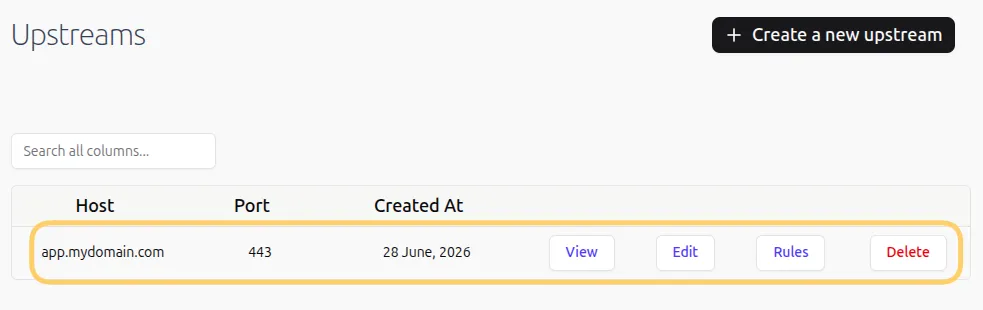
Section titled “Managing your upstream”After entering your configuration, click Add Upstream.
Your upstream is now ready to receive traffic, although it won’t receive any requests until you connect one or more custom domains.
View Domains
Section titled “View Domains”Select View to see all custom domains associated with the upstream.
Initially, this list will be empty. From here, you can add new custom domains that forward traffic to this upstream.
Configure Rules
Section titled “Configure Rules”Select Rules to configure request and response handling for the upstream.
Upstream rules are applied to every domain associated with the upstream before any domain-specific rules are executed.
For more information, see the Hostgrid Rules guide.
Delete Upstream
Section titled “Delete Upstream”Select Delete to permanently remove the upstream.
Deleting an upstream also deletes all associated custom domains and rules. Once deleted, Hostgrid immediately stops serving traffic for every verified and active domain associated with the upstream.
What’s next?
Section titled “What’s next?”Now that you’ve created an upstream, the next step is to connect one or more custom domains using the Custom Domains guide.
You may also want to learn how upstream rules work before configuring advanced routing behavior.