
How Custom Domains Work
A custom domain is an additional hostname that routes traffic to your application’s upstream. It allows the same application to be accessed through multiple domain names.
For example:
customer.com → app.example.com (upstream)Both domain names refer to the same application, but Hostgrid forwards requests from the custom domain to the configured upstream.
Once configured, Hostgrid handles DNS verification, SSL provisioning, and request routing automatically.
How custom domains work
Section titled “How custom domains work”When a request is made to a custom domain, Hostgrid only processes it if the domain has already been verified and activated.
Unverified domains do not serve any traffic.
Once a domain is active, Hostgrid processes incoming requests in the following order:
- The request is received on the custom domain
- Upstream rules are executed
- Domain rules are executed
- The request is forwarded to the upstream
- The upstream response is returned to the user
Hostgrid automatically provisions and renews SSL certificates for all active domains. HTTPS is enforced for all traffic without requiring manual certificate management.
This allows you to use custom domains with your application without modifying your infrastructure.
Relationship between domains and upstreams
Section titled “Relationship between domains and upstreams”Each custom domain is linked to exactly one upstream.
However, a single upstream can serve multiple custom domains.
Example:
Upstream app.example.com │ ┌───────────────┼───────────────┐ │ │ │ ▼ ▼ ▼ customer-a.com customer-b.com portal.customer-c.comThis model is useful for:
- Multi-tenant SaaS applications
- White-labeled customer portals
- Multiple brands sharing the same backend
To understand upstreams, see the Understanding Upstreams guide.
Creating a custom domain
Section titled “Creating a custom domain”To create a custom domain, first select an upstream in your dashboard.
Then click Add Domain.
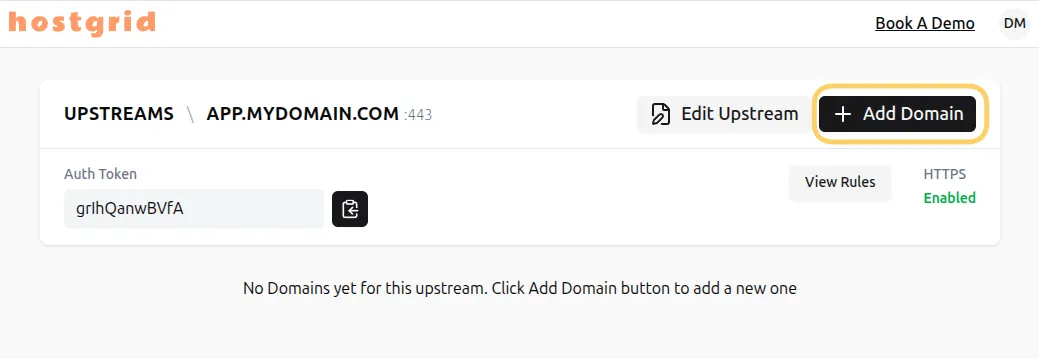
The domain configuration modal will open.
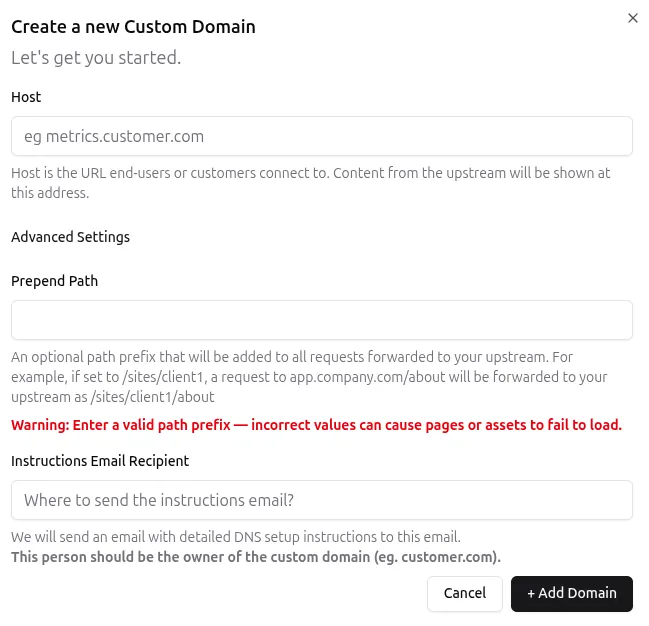
Domain settings
Section titled “Domain settings”The Host is the domain name that users will use to access your application.
Examples:
example.comapp.example.comportal.customer.comThis value determines the public URL that routes traffic to your upstream.
Instructions Email Recipient
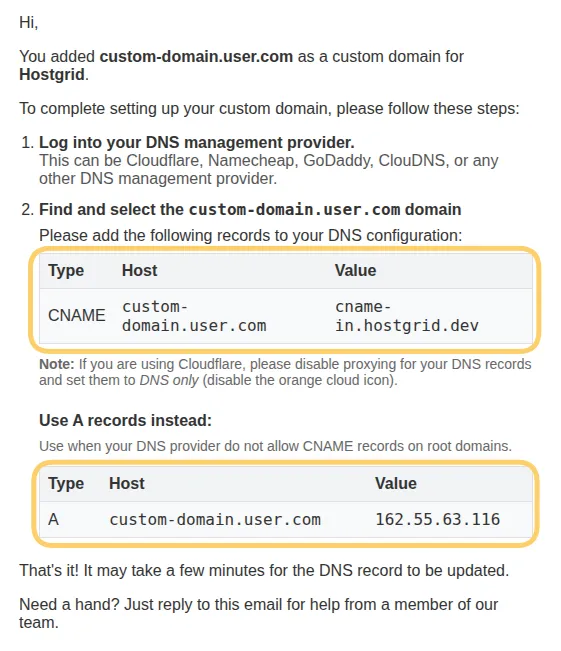
Section titled “Instructions Email Recipient”If provided, Hostgrid will automatically a step-by-step DNS setup guide to that address.
This reduces setup friction for non-technical users and improves onboarding success.
If you filled in the Instructions Email Recipient, you should receive an email there looking like this:
Prepend Path
Section titled “Prepend Path”Prepend Path allows you to forward requests to your upstream with an added path prefix.
For example:
customer.com → app.example.com/dashboardThis is useful when your application expects traffic under a specific route prefix.
DNS verification
Section titled “DNS verification”After creating a domain, Hostgrid will show a DNS status indicator.
If DNS records are missing or incorrect, the status will show Not Found.
Click the status badge to view setup instructions.
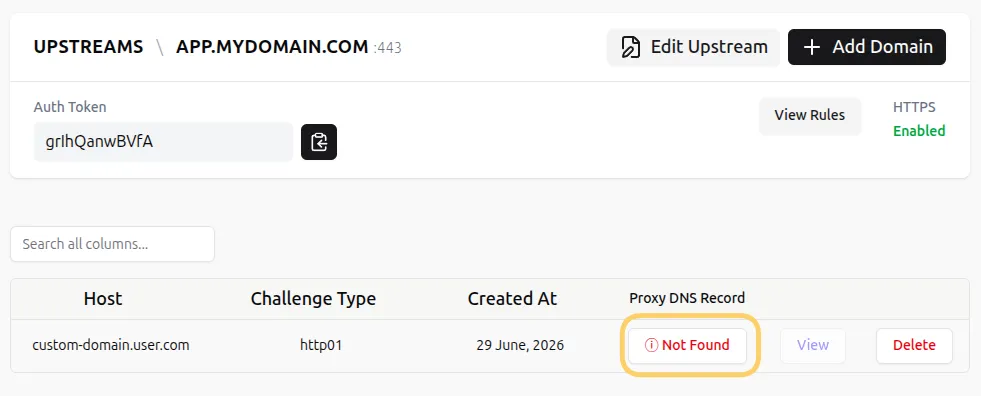
The DNS instructions pop-up will appear:
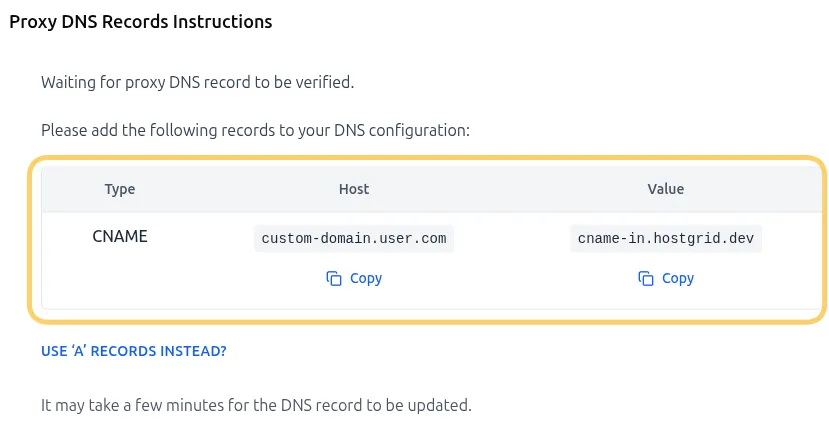
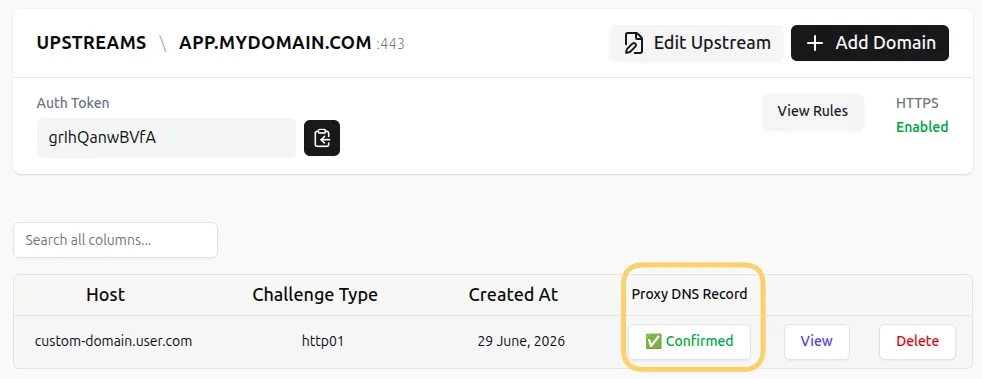
Once DNS records are correctly configured and propagated, the status will update automatically.
SSL and activation
Section titled “SSL and activation”Once a domain is verified:
- SSL certificate is automatically issued
- HTTPS is enabled
- Traffic begins routing to the upstream
- The domain becomes active
No manual certificate setup is required.
See: Automatic SSL Guide
What happens after setup
Section titled “What happens after setup”Once your domain is active:
- Requests to the domain are routed to your upstream
- Upstream rules are applied first
- Domain rules are applied second
- Responses are returned to the user through Hostgrid
To configure routing behavior, see: Hostgrid Rules