
Automated DNS Setup Emails
When customers connect their own domains to your application, configuring DNS is often the biggest onboarding hurdle.
In many organizations, the person using your application isn’t the same person who manages the company’s DNS. As a result, customers often have to copy DNS records from your dashboard and forward them to an IT administrator or web developer before setup can continue.
To simplify this process, Hostgrid can automatically send a DNS setup email containing everything needed to configure the domain.
The recipient doesn’t need access to your Hostgrid dashboard—they simply follow the instructions in the email.
How it works
Section titled “How it works”When creating a custom domain, you can optionally provide an Instructions Email Recipient.
Once the domain is created, Hostgrid immediately sends a DNS setup guide to that email address.
Create Domain │ ▼Enter Instructions Email Recipient │ ▼Hostgrid sends DNS setup email │ ▼Recipient configures DNS │ ▼Hostgrid verifies the domain │ ▼SSL is provisioned and the domain becomes activeThis allows the person responsible for DNS to begin setup immediately, reducing delays caused by forwarding screenshots or manually copying DNS records.
Configuring the email recipient
Section titled “Configuring the email recipient”When creating or editing a custom domain, you’ll find the Instructions Email Recipient field.
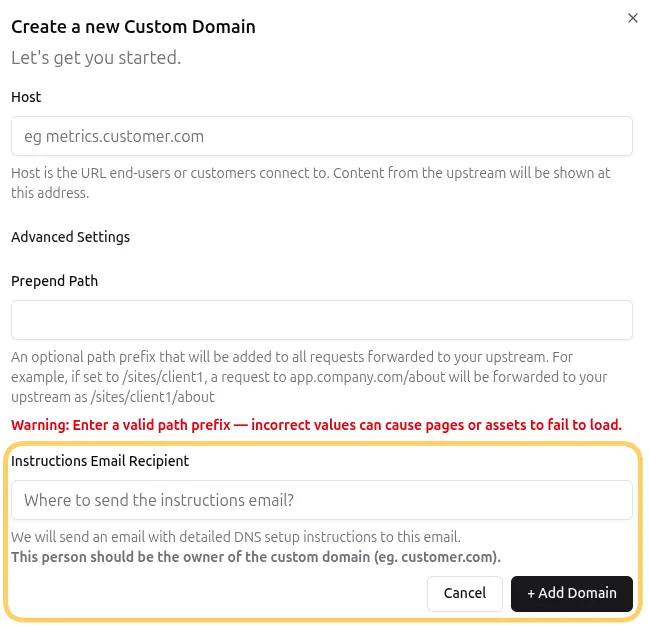
Enter the email address of the person who should receive the DNS setup instructions.
For example:
admin@customer.comit@customer.comwebmaster@example.orgThis field is optional.
If you leave it blank, no email will be sent.
What’s included in the email
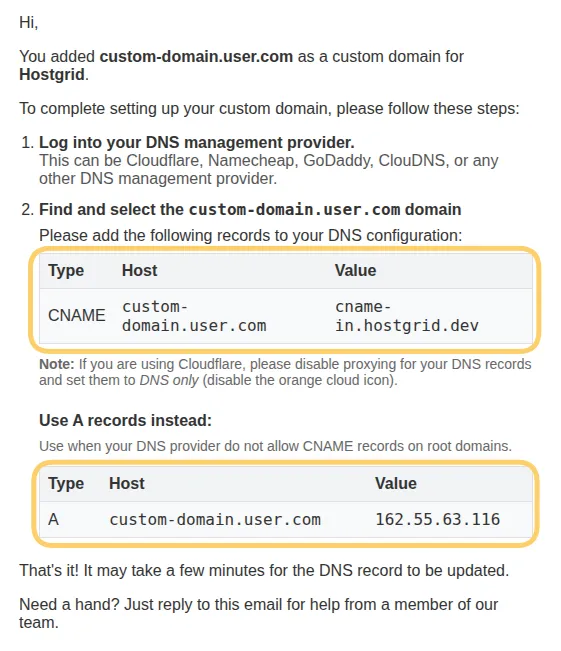
Section titled “What’s included in the email”The email contains everything needed to configure the domain, including:
- The custom domain being connected
- The DNS records that need to be created
- Step-by-step setup instructions
- Information about what happens after DNS verification
The recipient does not need to sign in to Hostgrid or access your dashboard.
Example email
Section titled “Example email”After a domain is created, the recipient receives an email similar to the following:
Why use automated DNS setup emails?
Section titled “Why use automated DNS setup emails?”Automating DNS instructions can help you:
- Reduce customer onboarding friction
- Eliminate manual copy-and-paste of DNS records
- Avoid support tickets asking for DNS instructions
- Help non-technical customers involve the right person sooner
- Speed up custom domain activation
For SaaS platforms that onboard many customers, this can significantly reduce the amount of manual support required for domain setup.
Best practices
Section titled “Best practices”For the fastest setup, send DNS instructions to the person responsible for managing the customer’s DNS.
This is often:
- An IT administrator
- A web developer
- A website administrator
- The team’s DNS or infrastructure administrator
If the person connecting the domain isn’t responsible for DNS, they can provide the appropriate contact when creating the domain.